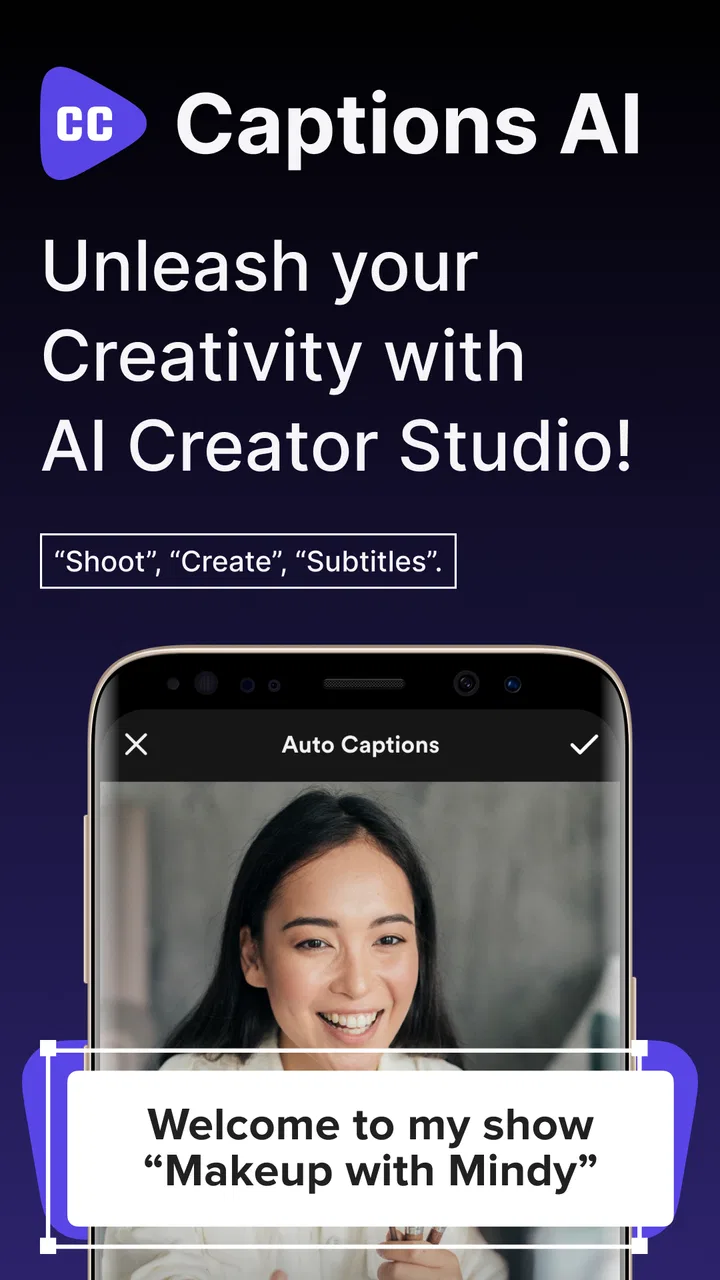
Captions AI: Videos Subtitles
- 4.6
- Rating
- 1.00M
- Installs
- Free
- Price

 Analysis by App-foxy
I found Captions AI: Videos Subtitles most useful when I treated it as a quick support tool for short-form video creation rather than a complete editing studio. It is designed for people who want to prepare social clips with generated captions, subtitles, hashtags, and a teleprompter, with Instagram clearly in mind. After trying the main workflow, my impression is that it can remove several small but annoying steps between recording an idea and publishing it.
The app sits in the video players and editors category and is developed by Pixster Studio. It is free to install, rated for Everyone, and works on devices running Android 8.0 or later. Its current version is 3.8.4, and the app has grown to more than a million installs with a 4.6 average from roughly ninety thousand ratings. Those figures suggest that it is aimed at a broad audience, not only experienced creators.
Getting from installation to a usable first video
For a first-time user, the best approach is to begin with a short recording rather than importing a long project or trying every tool at once. Think of a simple clip in which you explain one idea, show a product, or speak directly to the camera. A short test makes it easier to judge the caption accuracy and understand how the app presents its editing options.
You May Also Like

 Blood Strike: 2.5 Anniversary
Blood Strike’s Loadouts Turn Every Drop Into a Tactical Gamble
A close look at Blood Strike’s custom loadouts: how fast access to signature weapons reshapes its battle royale rhythm, rewards preparation, and narrows the gap between fights.

 Pandora - Music & Podcasts
Pandora’s Music Is Easy to Start, but Harder to Recover
Pandora’s strength is its low-effort path from a seed to a station. Its weak spot is how much confidence it asks you to place in connection, setup, and quiet recovery.

 8 Ball Pool
 Is Built on Rivalries, Rematches, and Routine
A close look at the rivalries, rematches, shared routines, and unanswered safety questions that turn a quick pool match into a persistent mobile community.

 Samsung Music
’s Quiet Strength Is Playing What You Already Own
Its reach comes less from spectacle than from dependable access to a personal library. That simplicity is both the app’s strongest retention engine and its ceiling.

 AccuWeather: Weather Radar
AccuWeather Review: A Quick, Clear Forecast for Everyday Decisions
For everyday plans, the best forecast is the one you can understand quickly. AccuWeather makes rain timing, radar, and local conditions easy to act on, with a few trade-offs.

 Hill Climb Racing
Why Hill Climb Racing Still Turns Crashes Into One More Run
A tiny car, a bumpy hill and one more upgrade: Hill Climb Racing keeps resurfacing because its simple chaos makes every near-miss feel personal.
More From Our News Desk



Once installed, I would start by deciding what the video needs most. If you already have footage, the caption and subtitle workflow is the obvious entry point. If you are still recording, the teleprompter is more useful because it helps you keep your delivery focused. The hashtag generator is better treated as a finishing aid, not as a substitute for knowing who you want to reach.
The free starting point is helpful because you can explore the basic experience before deciding whether the extra paid options suit your routine. In-app purchases range from $4.99 to $49.99 per item, so I would pay attention to what is included in the option shown to you instead of assuming every tool is covered by one purchase. That distinction matters if you only need occasional subtitles.
My first meaningful success would be a short spoken clip with readable subtitles and a caption that sounds like something I would actually say. That is a more useful test than simply opening the app and browsing menus. If the result saves you from manually transcribing and formatting the entire clip, the app has already earned a place in your workflow.
What the caption and subtitle tools are good at
The strongest idea behind this app is reducing repetitive writing. A spoken video often needs several layers of text: subtitles for people watching without sound, a post caption for the social platform, and perhaps hashtags for discovery. Having those tasks gathered around the same video can make the publishing process feel less fragmented.
I especially like the distinction between subtitles and a social caption. Subtitles should follow the spoken content closely and remain easy to read. A caption can be shorter, more conversational, or designed to invite a response. Treating them as identical usually creates awkward posts, so I recommend reviewing both separately even when the app generates them from the same recording.
There is also a practical accessibility benefit. Adding subtitles makes a talking video more understandable in quiet public places, busy rooms, or situations where viewers keep their sound off. I would still proofread names, technical terms, accents, and fast speech. Artificial intelligence can make a strong first pass, but a single incorrect word can change the meaning of a sentence or make a professional clip look careless.
A useful workflow is to record naturally first, then edit the wording after the transcription appears. Many people slow down or speak unnaturally when they are thinking about every subtitle in advance. It is usually quicker to correct a few lines than to make the original delivery stiff. This is one of the app’s practical strengths: it can shift the work from writing every line manually to reviewing and polishing.
Using the teleprompter without making the delivery sound scripted
The teleprompter is valuable for creators who know what they want to say but lose their place while recording. I would not fill it with a dense paragraph. Short lines, natural pauses, and speaking points are easier to follow than a full essay. The goal is to glance, speak, and return attention to the camera, not to read visibly from top to bottom.
For a product demonstration, I would prepare a simple sequence: the problem, the useful feature, one example, and a closing invitation. For a personal video, I would use keywords rather than exact sentences. This reduces the risk of a flat voice and makes it easier to react naturally if the recording takes an unexpected turn.
A less obvious trade-off is that a teleprompter can improve consistency while reducing spontaneity. If your content depends on a casual, conversational mood, too much text may make the result feel rehearsed. I would use it as a safety net for structure, especially when recording several clips in one session, rather than relying on it to dictate every word.
It is also worth recording a short practice take before making the final version. That lets you check whether your eye movement looks natural and whether the pacing leaves enough time to keep up with the text. This small test can prevent a technically successful recording from feeling uncomfortable to watch.
Where generated hashtags help, and where they do not
The hashtag feature can be useful when I have finished a video but am unsure how to describe its subject in platform-friendly terms. It can suggest directions I might overlook, particularly when a clip sits between two topics. I see it as a brainstorming tool that speeds up the first draft.
I would not copy every suggestion automatically. A long group of loosely related tags can make a post look unfocused, and a popular phrase is not necessarily relevant to the actual video. My preferred method is to keep only the suggestions that accurately describe the audience, subject, and format. The final selection should sound connected to the clip, not pasted on afterward.
This is also where human judgment matters most. If a video is about a specific hobby, local activity, or specialist subject, the app may help with broad wording but still need your knowledge for the precise terms. That is not a failure; it is simply the difference between generating possibilities and choosing the right ones.
A realistic everyday workflow
Imagine I am preparing a quick Instagram video after testing a kitchen accessory. I record a short explanation, using the teleprompter only for the order of my points. I then use the subtitle workflow to create text for viewers who watch silently, correct the product name, and read the generated caption aloud to check whether it matches my tone.
Before publishing, I look at the video with the sound turned off. This catches subtitle problems that are easy to miss while listening. I also check whether the text changes quickly enough to follow without becoming distracting. Finally, I use the hashtag suggestions as a starting list and remove anything that does not describe the actual demonstration.
That workflow is more realistic than expecting one tap to produce a finished post. The app can accelerate preparation, but the final quality still depends on the original recording and your review. In my experience, the biggest time saving comes from avoiding a blank page and a completely manual transcript, not from eliminating every editing decision.
Common points of confusion for new users
The first confusion is likely to be the difference between an automatic result and a publish-ready result. Generated subtitles may need corrections, especially when people speak quickly, overlap, use unusual names, or record in a noisy environment. I would always scan the text before sharing anything publicly.
Another point is the relationship between the app and a full video editor. Captions AI: Videos Subtitles is more appealing when your main need is spoken-text support and social preparation. If you need detailed timeline editing, complex transitions, advanced color work, layered audio mixing, or precise motion graphics, a dedicated editor is likely the better choice. Using this app for every stage could create unnecessary limits.
There is also a difference between making subtitles and making a video look polished. Text can improve clarity, but it does not fix poor lighting, distracting backgrounds, weak framing, or an unclear message. I would solve those recording issues first and then use the app to make the content easier to follow.
New users may also wonder whether the free installation means every capability is permanently available without cost. Because the app includes in-app purchases from $4.99 to $49.99 per item, I would examine the purchase screen carefully and decide whether the benefit matches how often I create videos. Someone publishing regularly may value the convenience more than someone who posts once every few months.
The age rating of Everyone makes the app approachable for a wide audience, but that should not be confused with automatic suitability for every type of content. Parents, teachers, and younger creators should still review the final videos, captions, and hashtags before posting. The app can help prepare text, while the user remains responsible for what is published.
Small habits that improve the results
First, keep the original spoken sentences reasonably short. Captions become easier to review when each thought has a clear beginning and end. This does not mean speaking unnaturally; it means avoiding one long sentence that forces the generated text into a crowded block.
Second, say important names and specialist words clearly. If a brand, place, or technical term matters to the video, I would pause slightly around it and check the transcription afterward. This is faster than discovering the error only after publication.
Third, separate the review stages. I would first correct the words, then judge the caption’s tone, and finally consider hashtags. Trying to solve all three at once makes it easier to overlook a spelling mistake or accept a caption that does not sound like me.
Fourth, use the teleprompter for structure rather than dependence. A short outline keeps the recording moving and makes retakes easier. If the entire script is written word for word, I am more likely to stare at the text and lose the natural rhythm that makes short videos engaging.
Finally, watch the completed clip in the same kind of situation as the audience. I would check it silently on a phone, because that reveals whether the subtitles are genuinely useful rather than merely present. It is a simple test, but it gives more insight than looking at the editing screen alone.
Who should use it, and who should choose something else
I think this app suits first-time creators, small social accounts, educators making short explanations, and anyone who records spoken clips but dislikes transcription work. It is also a good fit for people who want a guided starting point for captions and hashtags without learning a large editing suite.
It is less convincing for a professional editor who already has a refined captioning workflow or needs frame-by-frame control. If your projects involve multiple video layers, elaborate effects, detailed audio correction, or a carefully managed brand template, a full editor will offer more control. The convenience here comes from focus, and focus naturally means fewer advanced options.
I would also skip it if you want artificial intelligence to make every creative decision for you. The generated text can provide momentum, but it may sound generic until you add your own wording. The best results come from using the app as an assistant that prepares a draft, not as an author whose first answer must be accepted.
My final view after using the workflow
Captions AI: Videos Subtitles is a practical choice when the frustrating part of short-form video creation is turning speech into usable text and organizing the post around it. Its combination of captions, subtitles, hashtags, and teleprompter support gives beginners a clear path from an idea to a more complete social clip.
I appreciate that the app can be useful without demanding a complicated editing background. At the same time, I would not describe it as a replacement for a serious video editor or for careful human proofreading. The most important trade-off is straightforward: you gain speed and guidance, but you still need to check accuracy, tone, timing, and relevance.
With a 4.6 average and over a million installs, it has clearly found an audience, and my experience explains why. It removes several repetitive tasks that often stop people from publishing. The free entry point makes it reasonable to test with one short video, while the paid items mean frequent users should consider whether the added convenience fits their needs.
My recommendation is to begin with a short, clearly spoken recording, use the teleprompter lightly, proofread every generated subtitle, and treat hashtag suggestions as ideas rather than instructions. If that process produces a cleaner post with less manual work, this app is worth keeping in your toolkit. If your priority is deep visual editing rather than social video preparation, I would choose a more comprehensive editor instead.
FAQs for Captions AI: Videos Subtitles
01What is Captions AI: Videos Subtitles used for?
Captions AI: Videos Subtitles is a mobile video-editing app designed to help creators add subtitles and captions to spoken content. After importing or recording a video, the app can transcribe speech, synchronize text with the audio, and let you adjust the wording, timing, style, and appearance. It is particularly useful for social media videos, interviews, tutorials, short-form content, and accessibility-focused publishing.
02How accurate are the automatic captions in Captions AI?
The automatic transcription is generally helpful, especially when the speaker is clear and the recording has limited background noise, but it should not be treated as perfect. Accents, technical terms, multiple speakers, music, poor audio, and fast speech may produce mistakes. Before exporting, it is important to review the entire transcript and correct names, punctuation, wording, and timing so the final subtitles look professional.
03Can I edit the subtitles and customize their appearance?
Yes. Captions AI: Videos Subtitles provides editing tools for reviewing and modifying the generated text. Depending on the version and platform, users can correct individual words, adjust subtitle timing, and change visual elements such as fonts, colors, size, placement, and animation styles. These options make it possible to match captions to a personal brand, improve readability, and create videos suited to different social platforms.
04Does Captions AI: Videos Subtitles work offline, and what permissions does it require?
The app may require an internet connection for AI-powered transcription, processing, templates, or other cloud-based features, so offline functionality can be limited. It will normally request access to your camera and microphone for recording, as well as photo or video storage for importing and exporting content. Permission availability can vary by device and operating system, so users should review the prompts and privacy policy before granting access.
05Is Captions AI: Videos Subtitles free to download and use?
The application can generally be downloaded without an upfront charge, but some features may be restricted by a subscription, in-app purchase, export limitation, watermark, or trial policy. Premium access may include advanced caption styles, AI tools, templates, or higher-quality exports. Before starting a trial, check the current pricing, renewal terms, and cancellation instructions in the Google Play Store or Apple App Store.
Pros
- Automatically generates subtitles from spoken audio
- Supports multiple languages for broader audience reach
- Offers editable captions for correcting transcription errors
- Helps make videos more accessible to viewers
- Useful for creating social media content quickly
Cons
- Transcription accuracy can drop with background noise
- Some advanced features may require a paid subscription
- Export options may be limited on the free plan
- Long videos can take time to process
- Requires access to your videos and audio for captioning

Captions AI: Videos Subtitles
Gallery